Getting started as a field worker
Who this is for: engineers, technicians and anyone completing jobs on site.
What you will learn: how to sign in, find your work, and understand what the office expects from each job.
Before you start
- Your work email and password.
- Your phone or tablet.
- The FieldElite Worker app, if your company uses it.
- Signal or Wi-Fi for the first sync.
Sign in
- Open your workspace address on your phone, or open the FieldElite Worker app.
- Enter your email and password.
- Select Login.
- If asked, allow notifications and location access.
Location is used for arrival detection and the live map. It is only shared while you are working.
Find your work
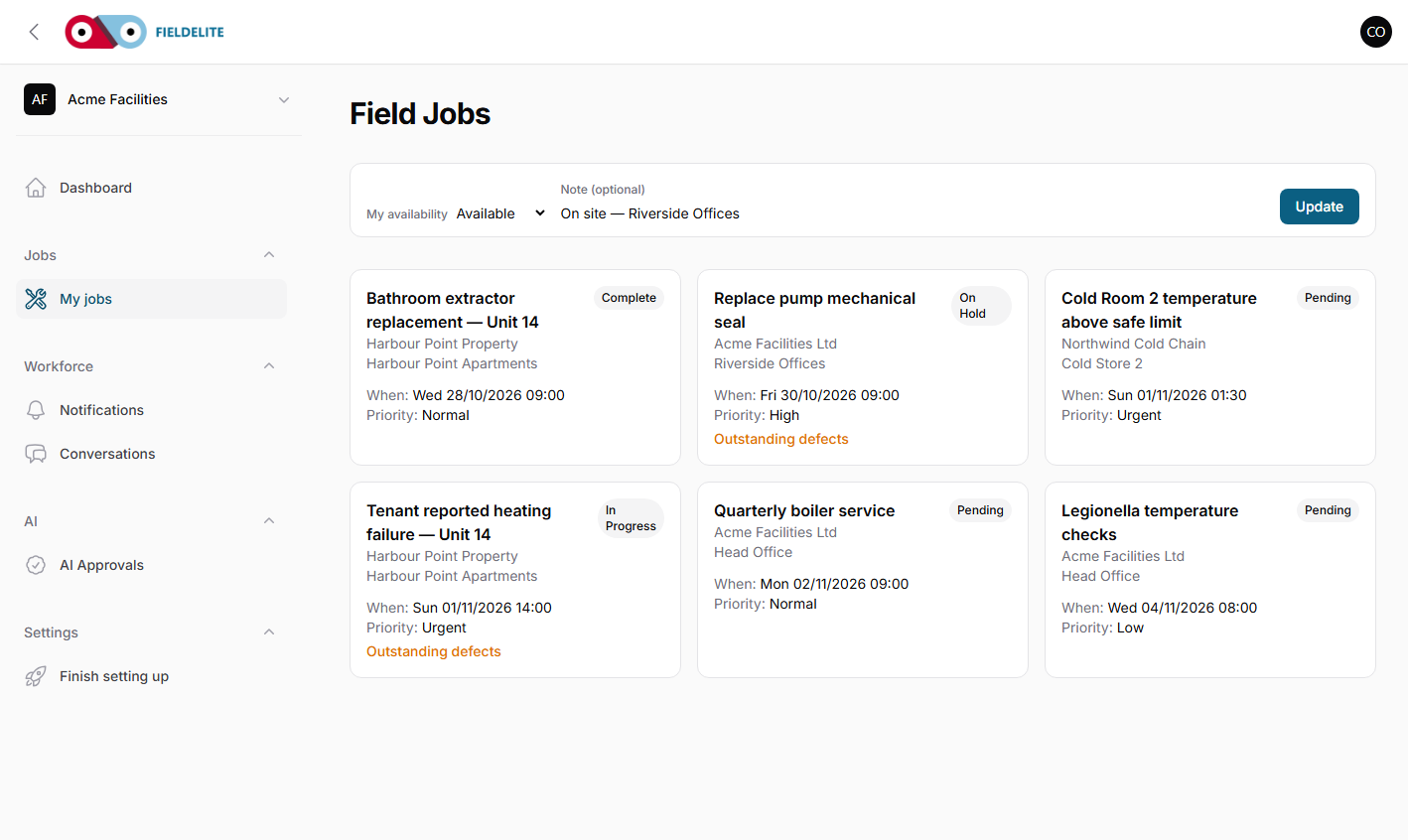
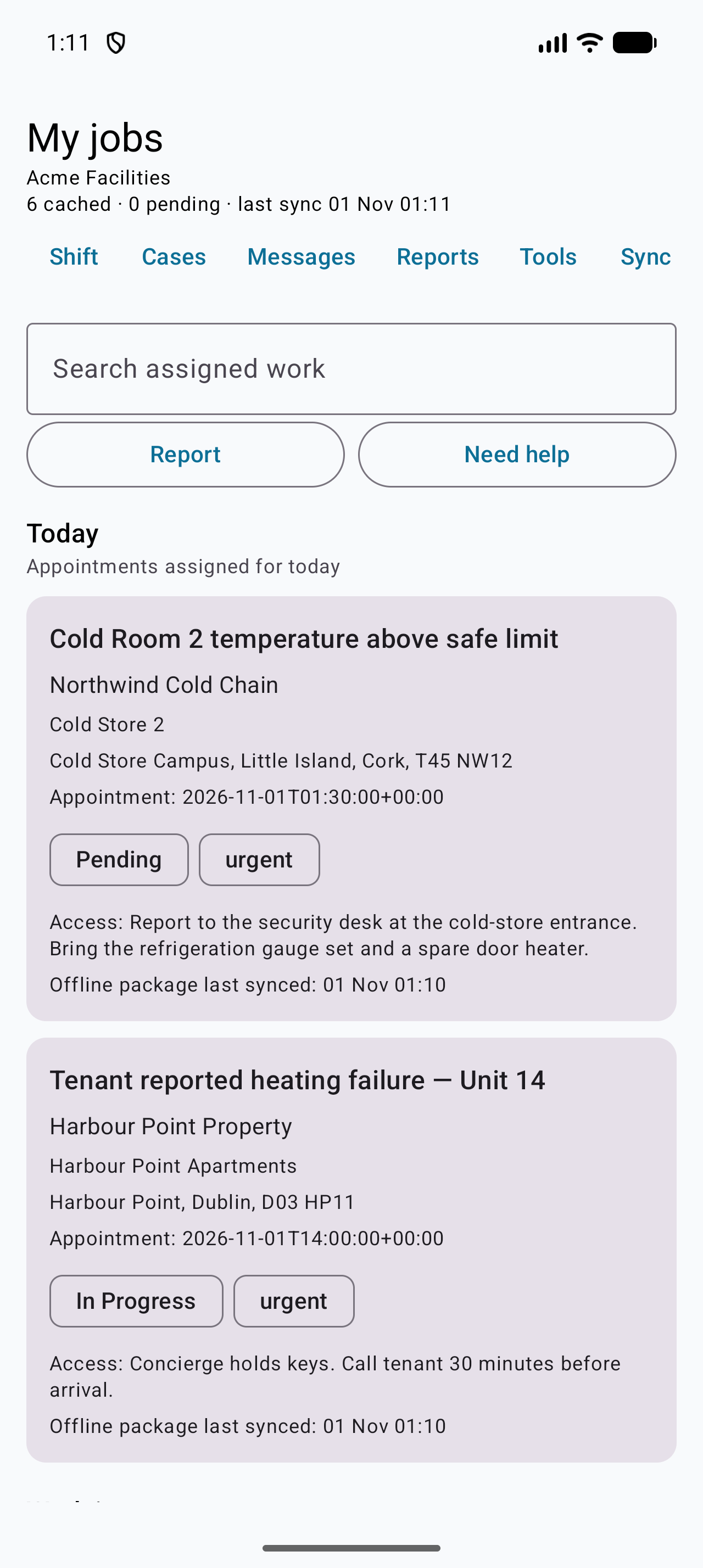
Open My jobs. The list shows jobs assigned to you, nearest or soonest first.
The app also has:
- Shift — start and end your day, vehicle checks, departure
- Cases — report an incident, near miss, hazard or ask a supervisor for help
- Messages — job, case and office-team conversations in one inbox
See Shift and visit checks and Reporting incidents and asking for help.
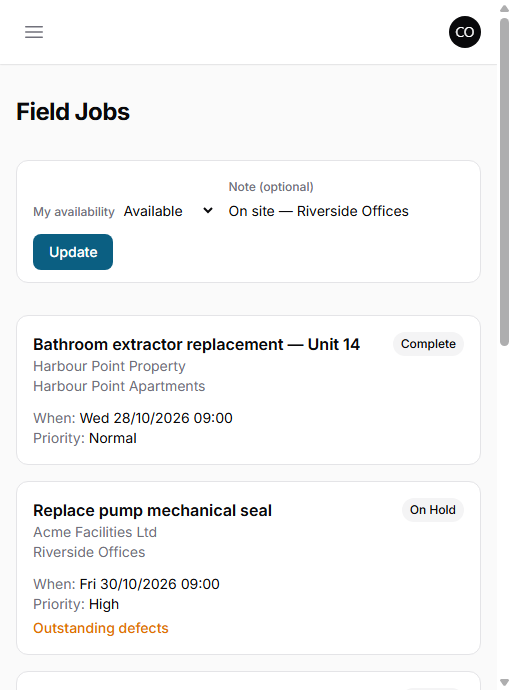
Each card shows:
- job title and customer
- site and access notes
- scheduled time
- priority and status
- what is still outstanding
Filter by Today, Upcoming or All. Pull down to refresh.
Understand the job screen
Tap a job to open it:
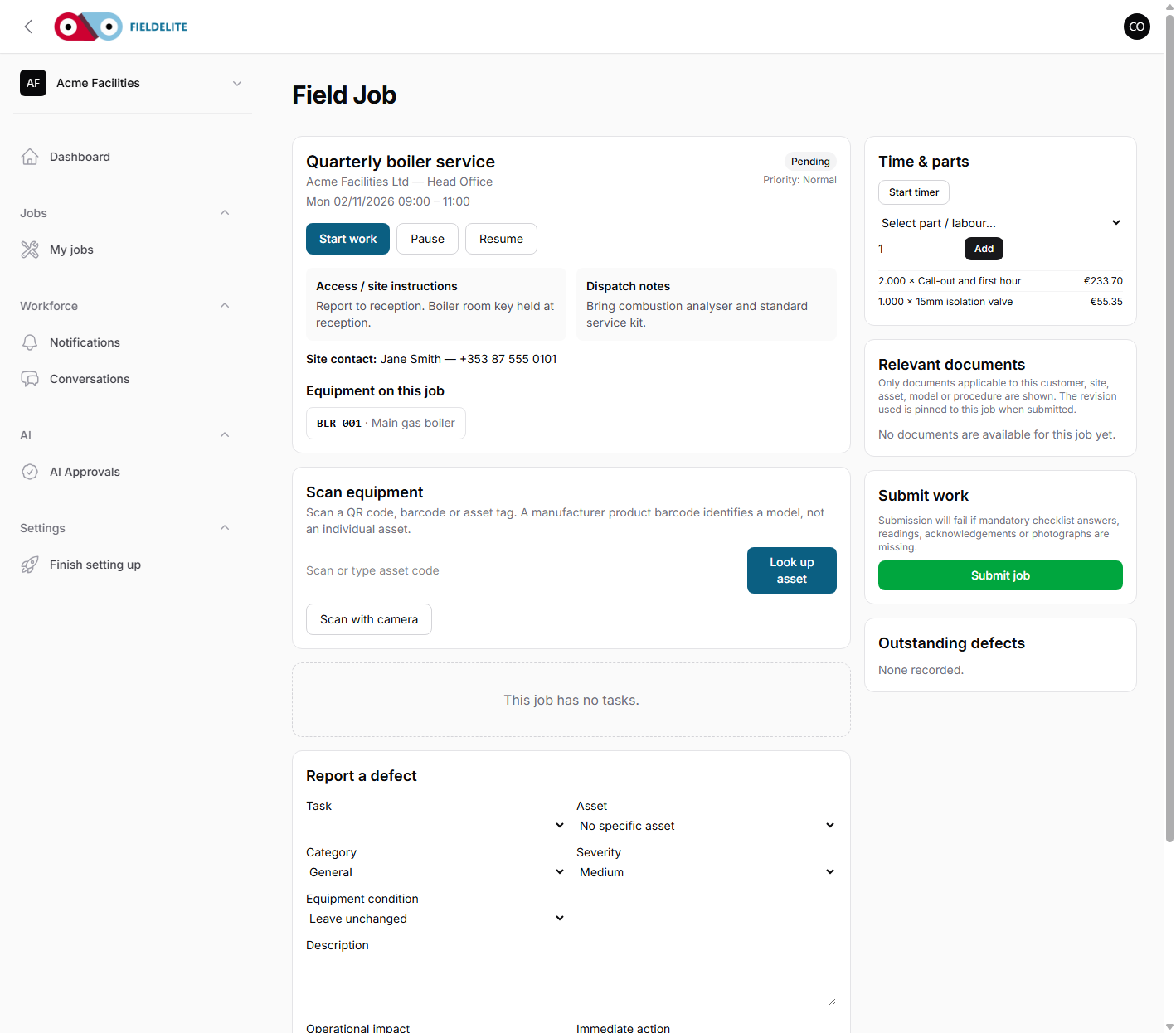
The screen is laid out in the order you work:
- Header — title, customer, site, time, status and priority.
- Access and dispatch notes — gate codes, key collection, hazards.
- Asset lookup — scan a QR or barcode to confirm the asset.
- Checklist — the required steps and readings.
- Evidence — before, during and after photos.
- Defects and parts — report what you found and what you used.
- Time — start and stop the timer.
- Documents — required reading you must acknowledge.
- Submit — send the completed job back to the office.
Start and finish
- Tap Start work when you arrive.
- Work through the checklist, saving each step.
- Capture the required evidence.
- Record any defect and any parts used.
- Tap Submit job when everything is complete.
If you cannot complete the work, record the reason and submit it as an exception. Do not leave the job open for days.
Using the app offline
The Android app can download your day's work and keep working without signal. See Offline use and syncing.
Warning: The web version of My jobs needs a connection. If the signal is poor, use the Android app.
Tips
- Tip: Read the access notes before you drive. A missing gate code can cost an hour.
- Tip: Take the before photo before you touch anything.
- Tip: Save each checklist step as you go. Do not fill in 20 answers and then lose them.
- Warning: Never share your login. Every action is recorded against you.
Check your understanding
- Where do you find today's jobs?
- What should you do before starting work?
- What is the difference between the web screen and the Android app?
Related: Working a job · Offline use and syncing
Related articles
Who this is for: field workers using the web workspace, the PWA or the Android app. What you will learn: how to open the help centre and find the answer without leaving the job. Op...
Who this is for: field workers. What you will learn: the on-site routine that produces a clean, billable, defensible job record. Arrive and start Park safely and follow the site'...
Who this is for: field workers. What you will learn: how to complete a checklist correctly and capture evidence that will stand up to review. How a checklist behaves It is a snap...
Who this is for: field workers. What you will learn: how to report a fault without losing the commercial or safety follow-up. Defect or note? Record Use it for Note A conver...