Checklists, forms and evidence
Who this is for: managers, supervisors and office administrators who design field records.
What you will learn: when to use a checklist rather than a form, how to build both, and how to review what comes back.
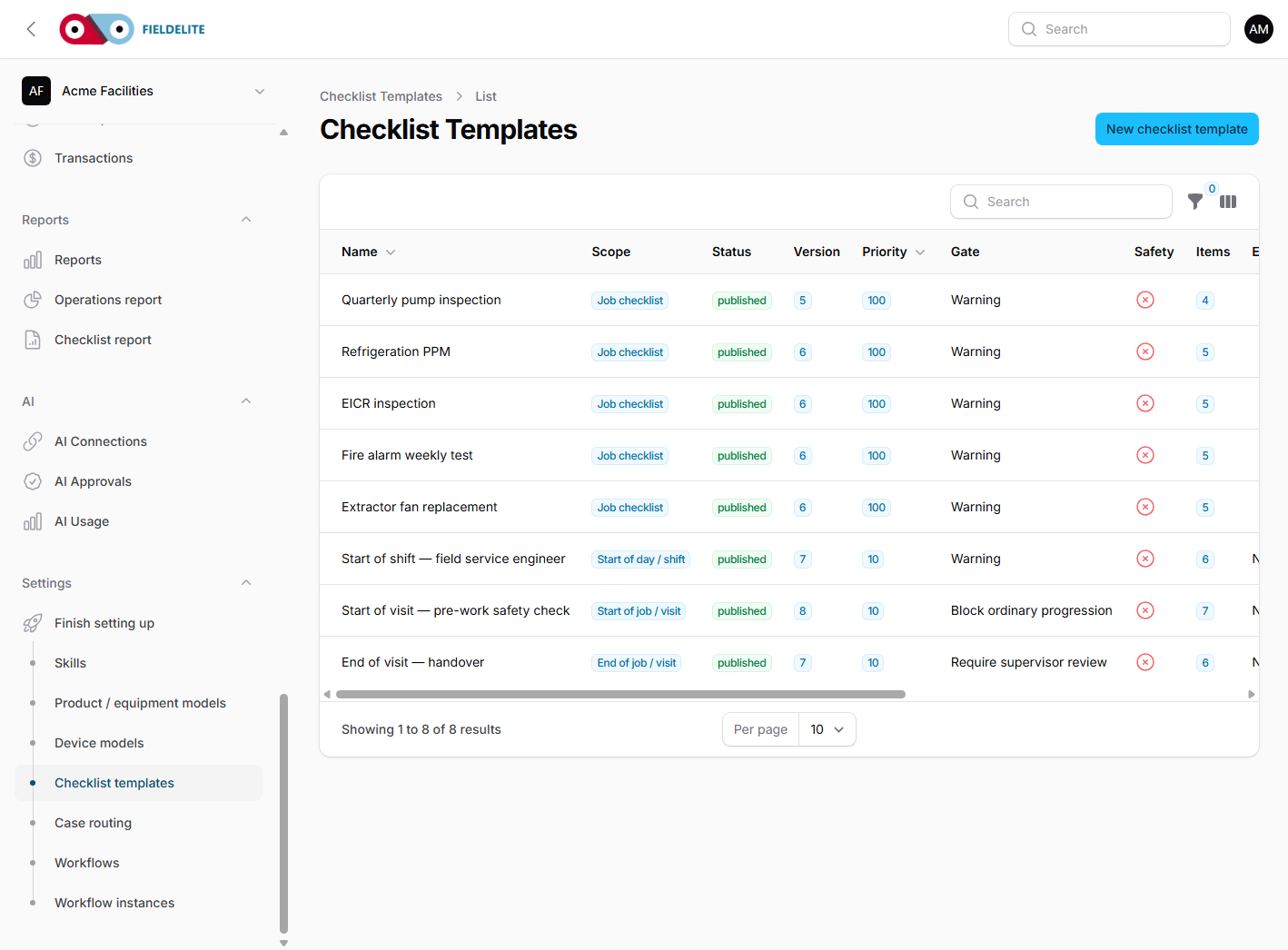
Checklist or form?
| Use a checklist when… | Use a form when… |
|---|---|
| The same steps are repeated on every visit | The fields change per customer or job |
| You need pass/fail, readings or yes/no | You need free-form fields and signatures |
| You want evidence before and after | The output is a certificate or submission |
| You want a completion percentage | You want a structured record to export |
Many jobs use both: a checklist for the procedure, and a form for the certificate.
Build a checklist template
- Go to Checklist templates → New template.
- Name it after the task, not the customer.
- Add instructions and capture guidance.
- Set evidence requirements:
- photos before work
- photos after work
- gallery upload allowed
- Add items. Each item has a type:
| Type | Use |
|---|---|
| Checkbox | Done / not done |
| Pass / fail | Inspection result, with optional photo on fail |
| Yes / no | Confirmation |
| Number | A reading with unit, minimum and maximum |
| Text | A short observation |
- For number items, set the acceptable range and whether an out-of-range reading needs an action.
- Add conditional items if one answer unlocks another.
- Save.
When a template is added to a job, FieldElite stores a snapshot. Later edits to the template do not change the job's historical record.
Build a form
- Go to Forms → New form.
- Add fields with a key, label, type and required flag.
- Supported field types include text, textarea, number, checkbox, date and select.
- Attach the form to a job.
- The worker or office user submits it.
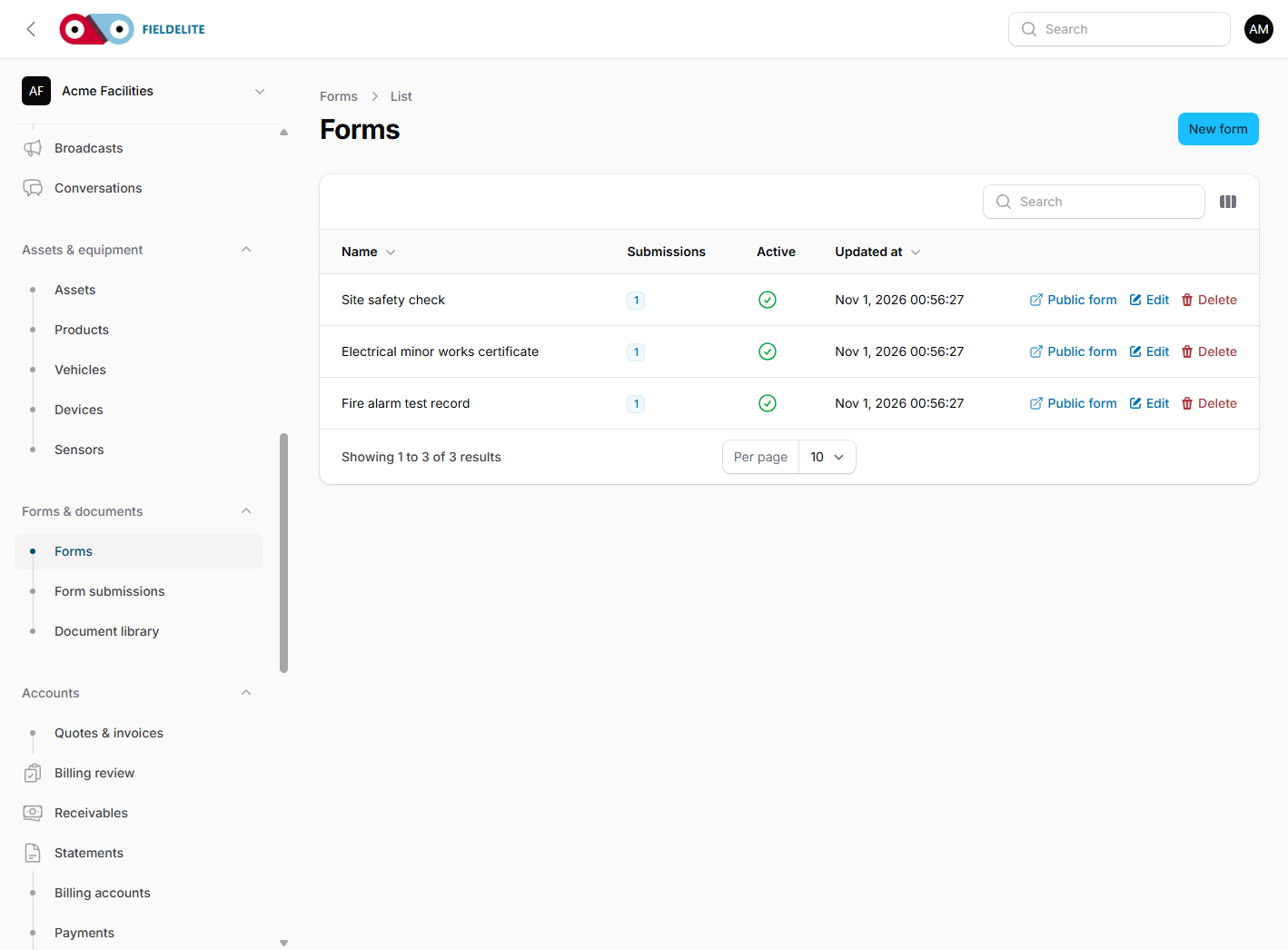
A public form can be shared by link with a customer. It is rate-limited and does not expose the rest of the workspace.
Review submissions
- Open Job checklists or Form submissions.
- Filter by job, status or date.
- Click the submission row to open it. The answers are rendered using the form's own field template and labels, so you can read the completed form rather than raw JSON.
- Check:
- required items answered
- readings within range
- evidence present
- defects raised where needed
- Approve, or return the job with a review note.
Tip: Use the job's Review state, not a note, when work must be corrected. The worker sees the rejection and can resubmit without losing the first submission.
Evidence rules that work
- Require a before photo for condition-based work.
- Require an after photo for installation and repair.
- Require a photo on fail for safety checks.
- Do not require 20 photos "just in case" — workers will take poor ones.
- Tell the worker what the photo must show, not just that a photo is required.
Lifecycle checks
Job checklists cover the task. Lifecycle checklists cover the worker's day and the visit:
- start and end of shift
- start and end of visit
- vehicle, PPE, site conditions, permits, handover and departure
They are separate records with their own scopes, gates, alerts and reports. See Lifecycle checklists, alerts and reports.
Safety checklists, RAMS and SPA
The safety suite is a third layer: start/end of day, vehicle walk-arounds, RAMS and SPA. These records control whether a worker or job may start and carry a 5 × 5 risk matrix, role-based signatures, worker briefings and vehicle-defect resolution. See Safety checklists, RAMS and SPA.
Check your understanding
- What is stored on a job when a checklist is attached?
- When would you choose a form over a checklist?
- What should happen when a required reading is out of range?
Related: Field: checklists and evidence · Jobs and the job lifecycle
Related articles
Who this is for: everyone in the office workspace. What you will learn: where the help centre lives, how to search it, and how to get from a screen to the right article. Open the h...
Who this is for: office administrators, dispatchers, managers and finance users. What you will learn: how to sign in to the right workspace, find your way around, and set up your p...
Who this is for: office administrators, dispatchers and managers. What you will learn: how FieldElite models a customer, its sites and the people on site — and how to give a custom...
Who this is for: office administrators, dispatchers, managers and supervisors. What you will learn: how to raise a job, assign it, move it through the status workflow, and close it...