Jobs and the job lifecycle
Who this is for: office administrators, dispatchers, managers and supervisors.
What you will learn: how to raise a job, assign it, move it through the status workflow, and close it with a defensible record.
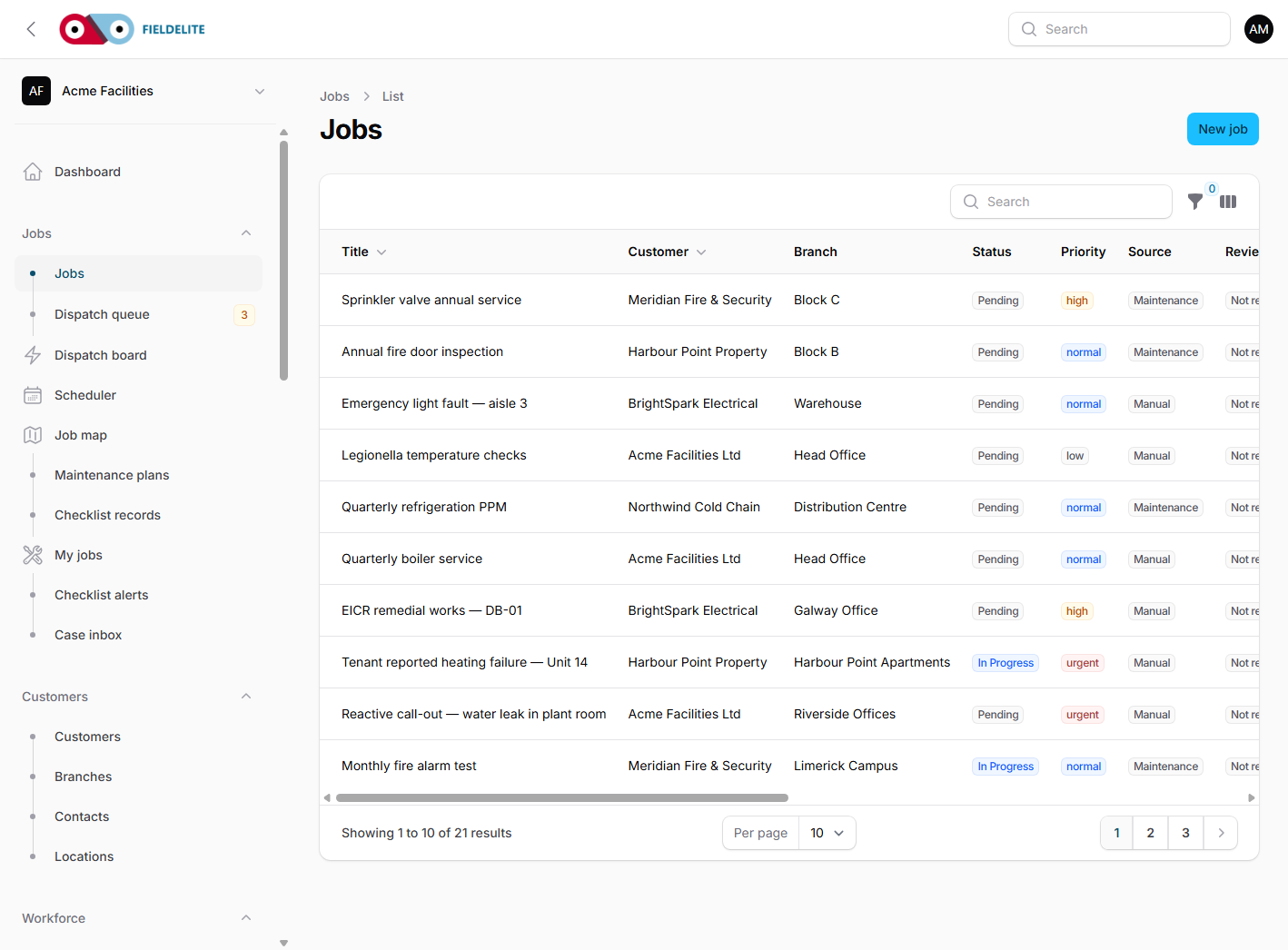
A job in one sentence
A job is one piece of work at one customer site, with its own schedule, assigned workers, checklist, evidence and commercial value.
Create a job
- Go to Jobs.
- Select New job.
- Choose the Customer and Branch.
- Choose the Job type (service, maintenance, installation or repair).
- Set the Priority (low, normal, high or urgent).
- Give the job a short, specific title. Use the customer's words where possible.
- Add a description of the fault or requested work.
- Add Access instructions and Dispatch notes.
- Set the scheduled start and end.
- Assign one or more workers and their time windows.
- Select Create.
Tip: A good title is "Cold Room 2 temperature excursion", not "Call-out". Titles appear in lists, schedules, portal pages and reports.
Priorities and SLAs
| Priority | Typical use | Suggested response |
|---|---|---|
| Low | Planned, non-urgent | Next available slot |
| Normal | Standard service | Within the service window |
| High | Customer impact, workaround available | Same day |
| Urgent | Safety, stock loss or total loss of service | Immediate |
When SLA tracking is enabled, the job stores a response due and resolution due time. Use these to sort the dispatch queue and to spot breaches in reports.
The status workflow
Pending ──▶ In Progress ──▶ Complete
   │             │
   ├──▶ On Hold ─┘
   └──▶ Cancelled
- Pending — raised but not started.
- In Progress — a worker has started.
- On Hold — waiting for parts, access or customer approval.
- Complete — work finished and signed off.
- Cancelled — no longer required.
Warning: Complete and Cancelled are terminal. A completed job cannot be moved back to In Progress. Raise a new follow-up job instead, and link it from the defect.
Assign workers
Open the job and use Assigned workers:
- Add a worker.
- Set the start and end time.
- Save.
Assignments appear on the scheduler. A worker can be assigned to several jobs, but overlapping times should be avoided.
If the job is unassigned, use the Dispatch board. It ranks workers by distance, skills, workload and travel time.
Record what happened
A strong job record contains:
| Record | Why it matters |
|---|---|
| Notes | Conversation, decisions and phone calls |
| Time entries | Labour cost and billable time |
| Job lines | Parts and services used |
| Checklist | Proof the required steps were completed |
| Evidence | Before, during and after photographs |
| Defects | Faults found but not fixed |
| Attachments | Supplier sheets, certificates and photos |
Field workers capture most of this on My jobs. Office users can add or correct records afterwards.
Cases and work holds
A job can be linked to a case: an incident, near miss, hazard or supervisor-assistance request.
- A case records the safety event or request for help.
- A work hold stops affected work without closing the job.
- A failed checklist answer can raise a hold if the template is configured.
- Closing the case does not release the hold or complete the job.
See Incidents, hazards and assistance cases.
Sign-off and review
When a worker submits a job:
- The job moves to the review queue if review is required.
- A manager checks the checklist, evidence and defects.
- Approve the submission, or return it for correction with a note.
- The job can then move to Complete.
Sign-off captures the customer name, method, location, time and an optional signature. The service report PDF is built from this record.
Edit safely
- Changing the schedule creates a schedule event in the job history.
- Reassigning a worker creates a reassignment event.
- Do not rewrite a completed job's story. Add a follow-up note or a new job.
Check your understanding
- Which statuses can a Pending job move to?
- What happens when a job is completed?
- Where would you record a fault found but not fixed?
Related: Scheduling and dispatch · Checklists, forms and evidence · Field: working a job
Related articles
Who this is for: everyone in the office workspace. What you will learn: where the help centre lives, how to search it, and how to get from a screen to the right article. Open the h...
Who this is for: office administrators, dispatchers, managers and finance users. What you will learn: how to sign in to the right workspace, find your way around, and set up your p...
Who this is for: office administrators, dispatchers and managers. What you will learn: how FieldElite models a customer, its sites and the people on site — and how to give a custom...
Who this is for: dispatchers, schedulers and operations managers. What you will learn: how to plan the day, assign the right worker, and keep customers informed. The four planning...