Scheduling and dispatch
Who this is for: dispatchers, schedulers and operations managers.
What you will learn: how to plan the day, assign the right worker, and keep customers informed.
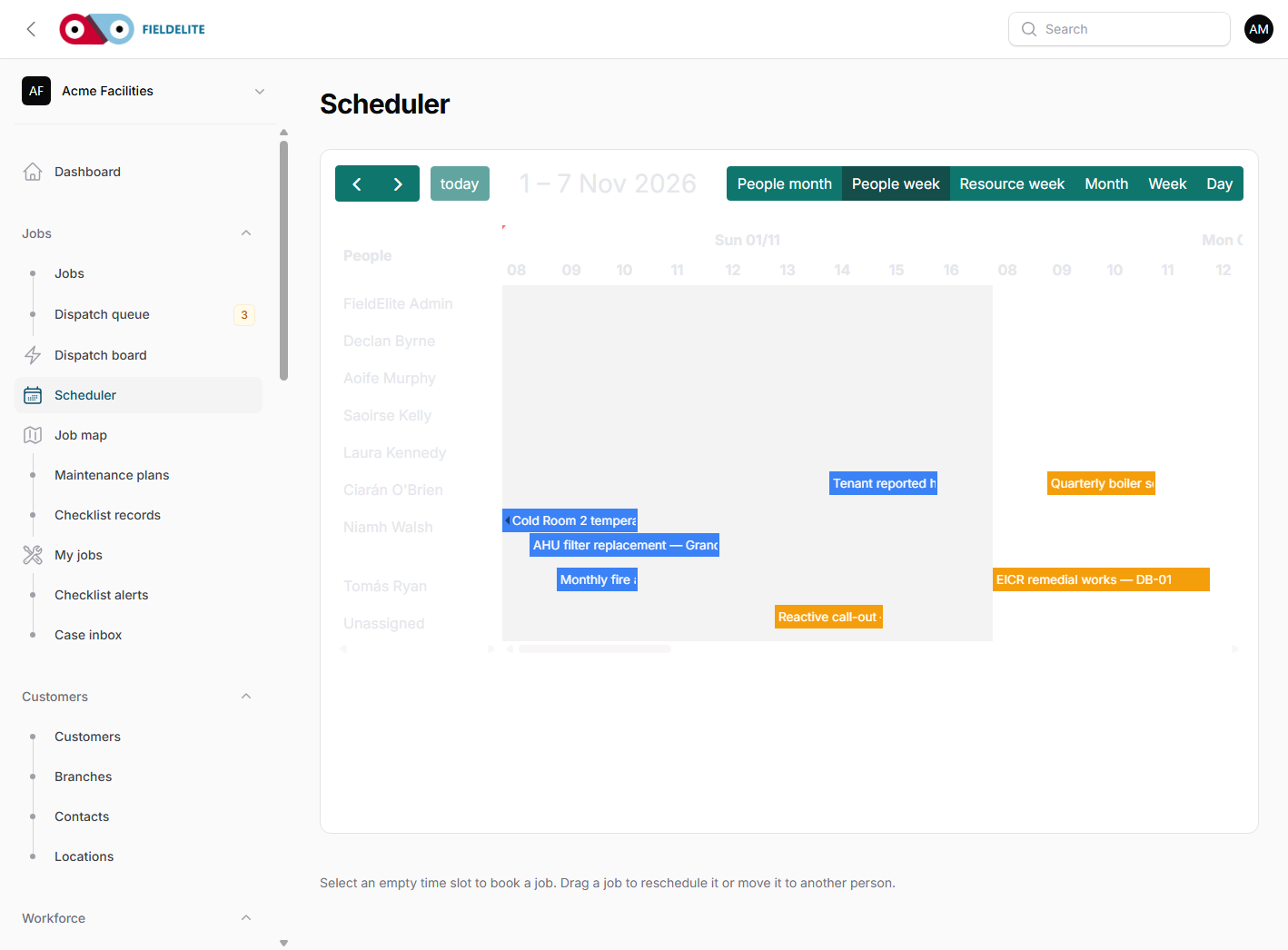
The four planning views
| View | Use it when |
|---|---|
| Scheduler | You want a calendar of jobs and assignments |
| Dispatch board | You have unassigned jobs and need the best worker |
| Job map | You need to see work and field staff geographically |
| Dispatch queue | You are working through maintenance occurrences that are due |
Plan the day in the scheduler
- Open Scheduler.
- Choose the day or week.
- Filter by crew, worker or status if the view is busy.
- Drag a job to a new time or worker.
- Click a job to open its details, or double-click an empty slot to book a new one.
- Confirm the change.
The scheduler writes a schedule event. The worker sees the new time on My jobs.
Safety gate: every calendar move uses the same server-side check as dispatch and offers. If the worker has an incomplete start-of-day checklist or an outstanding vehicle defect, the move is rejected and the original booking remains. A manager may record an override reason only where the gate allows it; the reason is audited.
Tip: Schedule realistic travel time. A 30-minute job across a city is not a 30-minute block.
Use the dispatch board
- Open Dispatch board.
- Select an unassigned job.
- Review the candidate list. It considers:
- skills and certifications
- current workload
- distance and travel time
- availability
- Choose Assign.
- Add a dispatch note explaining anything the worker needs to know.
Offer a job instead of assigning it
Use Offer when several workers could take the job:
- Select the job.
- Choose the workers.
- Set an expiry time.
- Send the offer.
The first worker to accept is assigned; the other offers are declined automatically. Expired offers are cleared by the dispatch:expire-offers command.
Keep the customer informed
For a job with a customer tracking link:
- Open the job.
- Generate or copy the tracking link.
- Send it to the customer.
The link shows the job status, scheduled window and an estimated arrival. It does not expose internal notes, costs or other customers.
Crews, skills and availability
- Crews group workers who normally travel together. Assign the crew to a job and the members are assigned together.
- Skills record certifications such as F-Gas, electrical or working at height.
- Worker skills shows who holds what, including expiry dates.
- Availability shows who is available, busy, on a break or unavailable.
Use all three before assigning specialist work. A missing certificate is a safety and compliance issue.
Live map
The Job map plots:
- jobs with a site location
- the latest known position of field staff
- vehicles, when fleet is enabled
- job status colours
Positions are only as fresh as the last phone check-in. The map shows last-seen time and offline state so you do not mistake a stale pin for a live one.
Open details from the map:
- Click a marker to see its summary popup.
- Right-click a worker marker to open the worker panel with their contact details and scheduled jobs.
- Right-click a job marker to open the job in a new tab.
- Both popups also include a direct link (View worker details or Open job details).
Broadcasts
Use Broadcasts for one message to many workers:
- everybody
- a crew
- a role
- everyone on a job
Broadcasts are for operational notices, not individual performance feedback.
A dispatcher's morning routine
- Check Dashboard for unassigned and in-progress work.
- Open Dispatch queue and clear anything due today.
- Open Dispatch board and assign urgent work first.
- Check the Scheduler for clashes.
- Send a broadcast if weather or access conditions changed.
- Re-check the map at midday for workers who have gone offline.
Check your understanding
- Which view ranks workers by distance and skills?
- What happens when the first worker accepts an offer?
- Where do you record a certification?
Related: Jobs and the job lifecycle · Maintenance plans and the dispatch queue
Related articles
Who this is for: everyone in the office workspace. What you will learn: where the help centre lives, how to search it, and how to get from a screen to the right article. Open the h...
Who this is for: office administrators, dispatchers, managers and finance users. What you will learn: how to sign in to the right workspace, find your way around, and set up your p...
Who this is for: office administrators, dispatchers and managers. What you will learn: how FieldElite models a customer, its sites and the people on site — and how to give a custom...
Who this is for: office administrators, dispatchers, managers and supervisors. What you will learn: how to raise a job, assign it, move it through the status workflow, and close it...