Expenses, receipt OCR and approvals
Who this is for: office administrators, finance users and managers with the
expenses.approve permission.
What you will learn: how to review AI-extracted receipts, correct the pre-filled data, approve or reject claims, run expense reports and configure the tenant rules.
What the worker sees
The worker photographs a receipt in the PWA or Android app. The upload is queued for OCR. The worker then reviews a pre-filled expense form:
- merchant and transaction date
- currency (default EUR) and total
- VAT/tax amount and rate
- category and line items
Fields marked AI came from OCR. Amber fields are low confidence, missing or unparseable; the worker must confirm them before submission. If net + VAT does not equal the total, the worker must acknowledge the checksum warning.
Nothing becomes an official expense at this stage. The status stays Draft until the worker submits it.
Offline submission and retries
A claim queued on the device is pending, not accepted by the server. Each submission carries a stable client submission key. If the connection drops after the server commits but before the device sees the response, the worker app reads the claim back and only treats it as successful when the server has accepted the same claim. A second approval, notification batch or claim is not created; a draft, rejected or mismatched state is shown as a retry rather than a false success.
The approval queue
Open Workforce → Expense approvals.
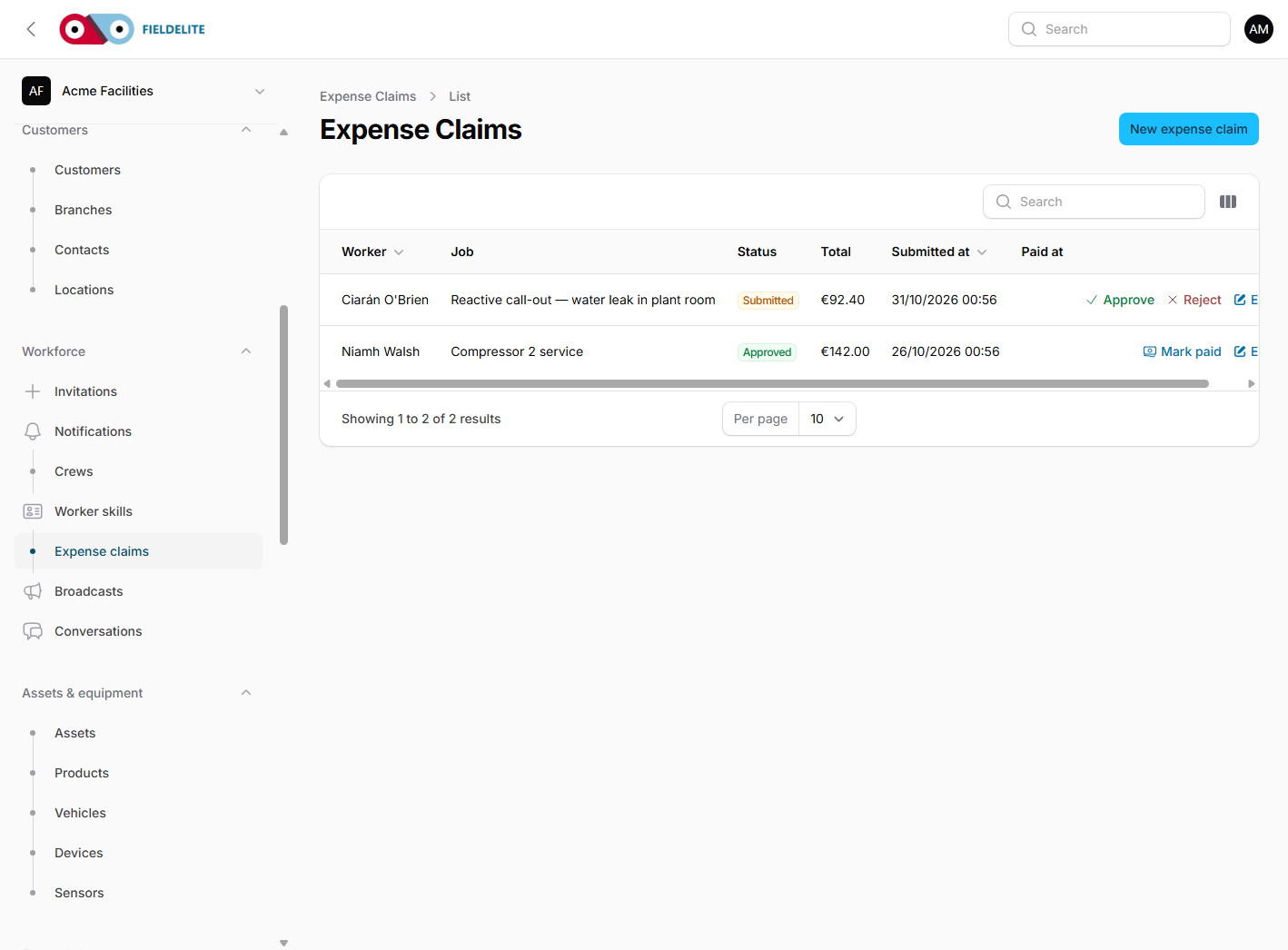
The queue shows everything awaiting approval. Each row includes:
- receipt thumbnail
- submitter and department
- merchant and transaction date
- extracted value (what OCR read)
- corrected value (what the worker confirmed)
- category, VAT and total
- submitted time
Use the filters and search to narrow by worker, merchant, category or status. Select several rows and use Approve selected or Reject selected.
Approve
- Check the receipt image against the corrected values.
- Confirm the category and total.
- Tap Approve or select several and tap Approve selected.
- Add an optional comment.
- The submitter is notified in-app, by email and by push.
If the tenant has enabled the two-person rule, an expense above the threshold needs a second, different approver. The first approval keeps the claim pending and notifies the other approvers.
Reject
A rejection requires a reason of at least 10 characters. The reason is shown to the worker and recorded in the audit trail. The worker can correct the expense and resubmit it.
Reopen
An approved expense is read-only for the worker. An approver can reopen it if a correction is needed. The reopen action is recorded; the previous history is never deleted.
The audit trail
Every submission, first approval, approval, rejection and reopen creates an immutable row in the expense history. The detail page shows who acted, when and why.
Separately, every tenant record change is written to Settings → Activity log, where managers can filter by event and record type. The tenant administrator sets how long audit rows are kept; the nightly purge applies that value.
Expense reports
Open Reports → Expense reports.
Choose Day, Week, Month or a Custom range, then filter by worker, department, category, status or merchant.
The report shows:
- total spend, net and VAT
- number of expenses and average value
- change against the previous period
- status breakdown (draft / awaiting approval / approved / rejected / paid)
- spend by category and by worker
- daily spend trend
Use Export CSV (Excel-compatible) for analysis or Export PDF for a branded report with receipt thumbnails. My statement downloads the current user's own expenses.
Daily and monthly digests are sent to approvers at the tenant's configured time. Each user can opt out from Notification preferences.
Tenant settings
Approvers can configure:
| Setting | What it controls |
|---|---|
| Approval threshold | Amount at which a second approver is required |
| Two-person rule | Turn the second approver requirement on/off |
| Daily OCR cap | Maximum receipt pages processed per day |
| Receipt retention | Years before receipt images are deleted/anonymised |
| Digest time | Local time for the daily summary |
| Digest enabled | Turn scheduled summaries on/off |
| Audit retention | Days before activity-log rows are purged |
Privacy and retention
Receipts are personal data. They live in private storage, are served only through short-lived signed links, and are never public. Images are re-encoded to remove EXIF metadata (including location). Payment card-like numbers are redacted from OCR output.
After the retention period, receipt images are deleted or anonymised while the financial record remains. A right-to-erasure request can remove the image without destroying the approved financial totals.
Practice
- Open Expense approvals and find the fuel claim from the demo worker.
- Compare the extracted total with the corrected total.
- Approve it with a short comment.
- Open Expense reports and run a month-to-date report.
- Export the CSV and open it in a spreadsheet.
- Reject a test claim with a clear reason and check the worker notification.
Check your understanding
- Why can a worker not submit an amber field without confirming it?
- What happens when an expense exceeds the two-person threshold?
- Where do you change receipt retention?
- Which audit rows are immutable?
Related: Reports, map and billing review · Team, modules and settings · Troubleshooting
Related articles
Who this is for: everyone in the office workspace. What you will learn: where the help centre lives, how to search it, and how to get from a screen to the right article. Open the h...
Who this is for: office administrators, dispatchers, managers and finance users. What you will learn: how to sign in to the right workspace, find your way around, and set up your p...
Who this is for: office administrators, dispatchers and managers. What you will learn: how FieldElite models a customer, its sites and the people on site — and how to give a custom...
Who this is for: office administrators, dispatchers, managers and supervisors. What you will learn: how to raise a job, assign it, move it through the status workflow, and close it...