Quotes, invoices and payments
Who this is for: office administrators, finance users and managers.
What you will learn: the commercial lifecycle from quotation to cash, and how to keep the ledger correct.
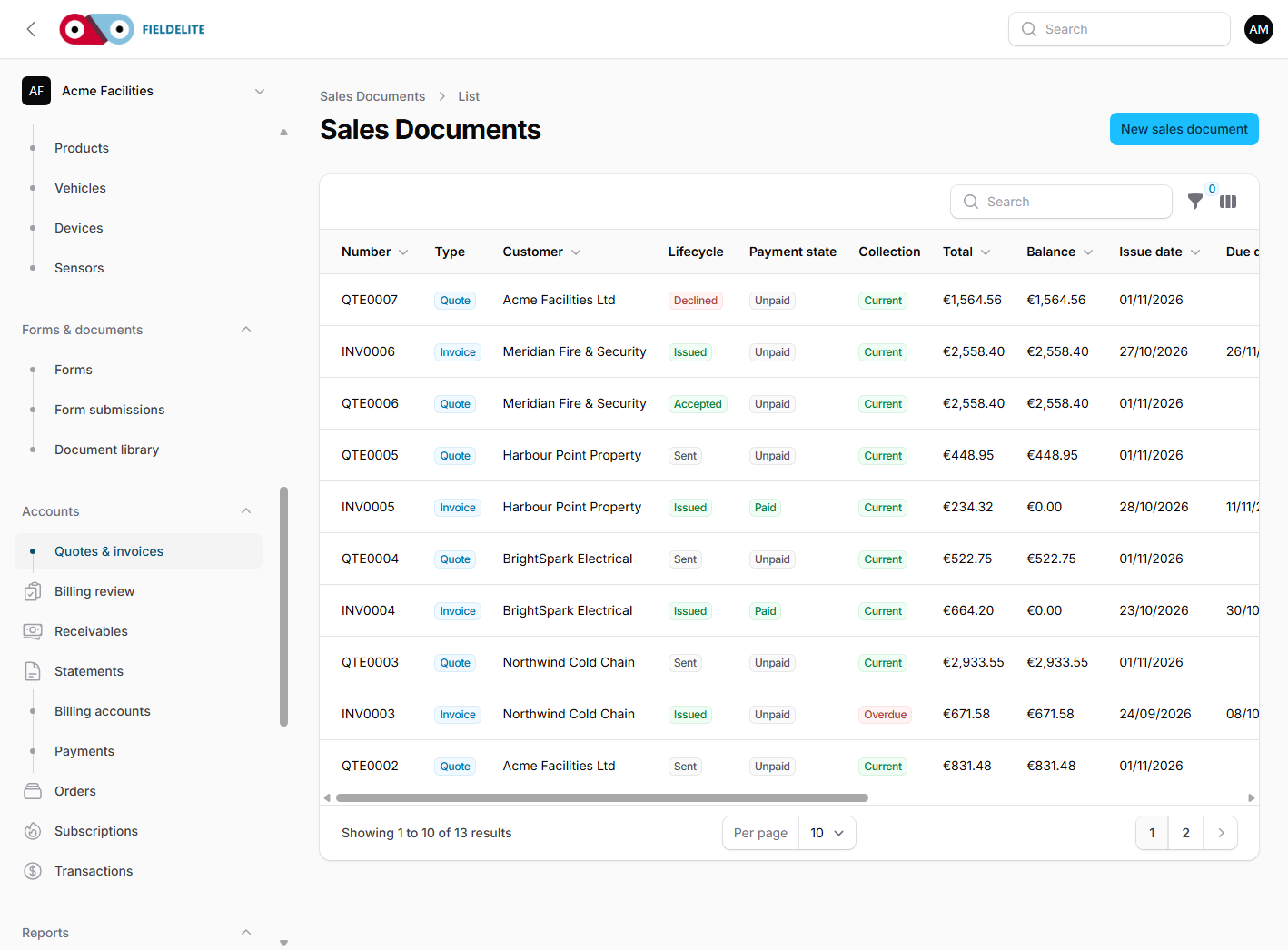
The lifecycle
Draft ─▶ Sent ─▶ Accepted ─▶ Invoice draft ─▶ Issued ─▶ Paid
   │       │
   │       └──▶ Declined
   └──▶ Pending approval ─▶ Approved
A quotation is a promise. An invoice is a legal demand for payment. Do not use one as a substitute for the other.
Create a quotation
- Go to Quotes & invoices → New quote.
- Choose the customer, branch and optionally the job.
- Add lines: product or service, description, quantity, unit price and tax.
- Check the totals, discount and tax summary.
- Add terms and a validity date.
- Save the draft.

Approval thresholds
If a discount or margin crosses the configured threshold, the quote needs internal approval before it can be sent. The approver sees the commercial reason and either approves or rejects it.
Send the quote
- Review the customer email addresses.
- Select Send.
- The quote moves to Sent and a revision is recorded.
The customer can accept or decline in the portal. Acceptance records the name, email, method and time. Offline acceptance can be recorded by the office.
Warning: Never edit a sent quote to change the price. Raise a revision or a new quote, so the customer's acceptance still points at the exact version they saw.
Convert to an invoice
-
Open the accepted quote.
-
Select Convert to invoice.
-
Choose the lines and quantities to invoice. Partial conversion is supported.
-
Confirm the PO number and service date.
-
The system creates an invoice draft.
-
Review the draft. Check the customer, lines, tax, PO and due date.
-
Select Issue.
Issuing assigns the invoice number, freezes the financial fields, creates the PDF and posts to the customer ledger.

Record a payment
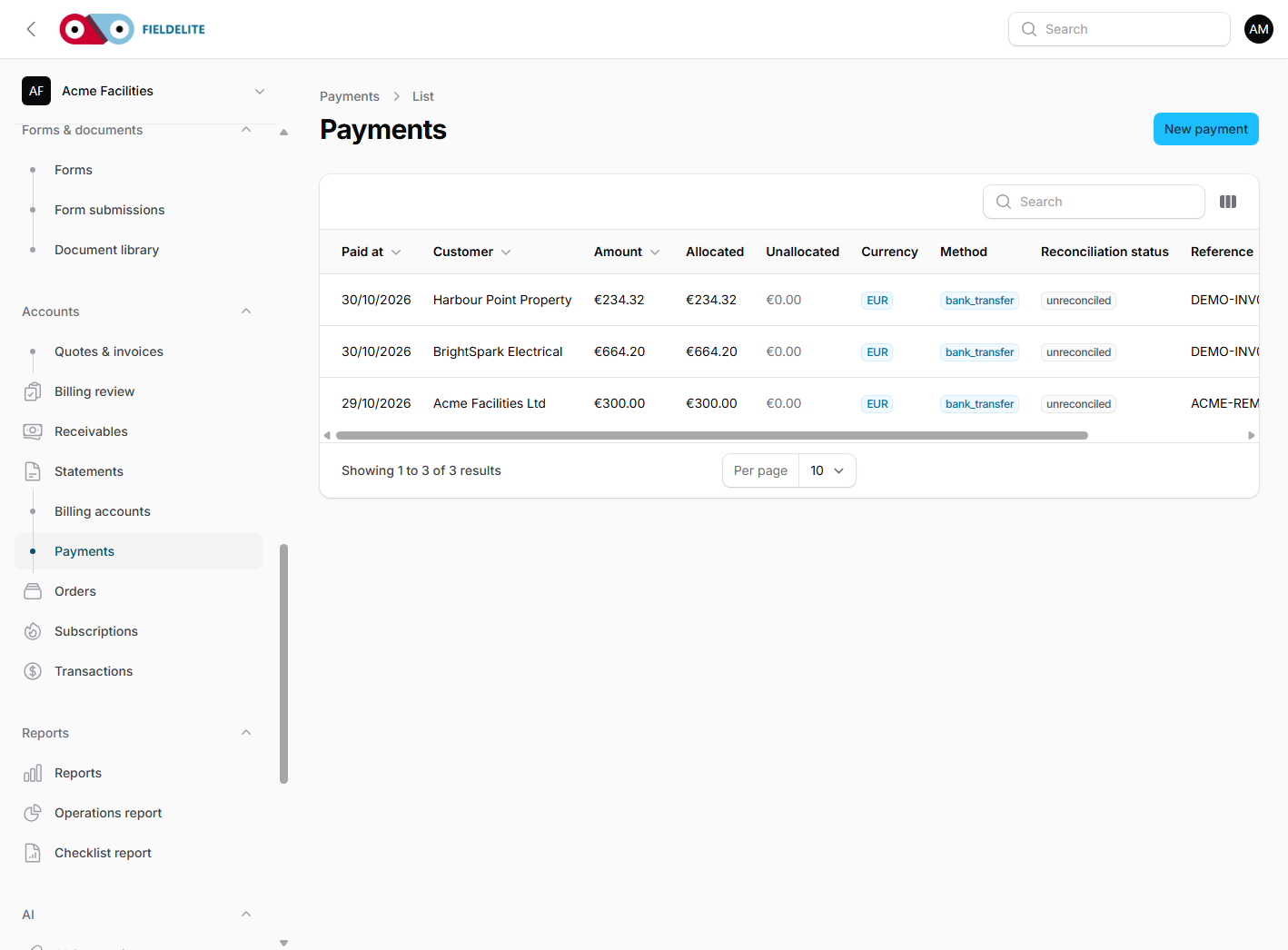
- Open Payments → New payment or open the invoice.
- Choose the customer.
- Enter the amount, method, reference and paid date.
- Allocate the payment to one or more invoices.
- Save.
The invoice balance updates from the allocation, not from a status toggle. A payment can remain unallocated and be allocated later.
Credit notes and write-offs
- Credit note — use when an invoice was wrong, or goods/services were returned.
- Write-off — use when the debt is unrecoverable and the business accepts the loss.
- Refund — use when money must go back to the customer.
These are separate actions with separate permissions. A manager may record a payment but not authorise a refund or write off debt.
Receivables and statements
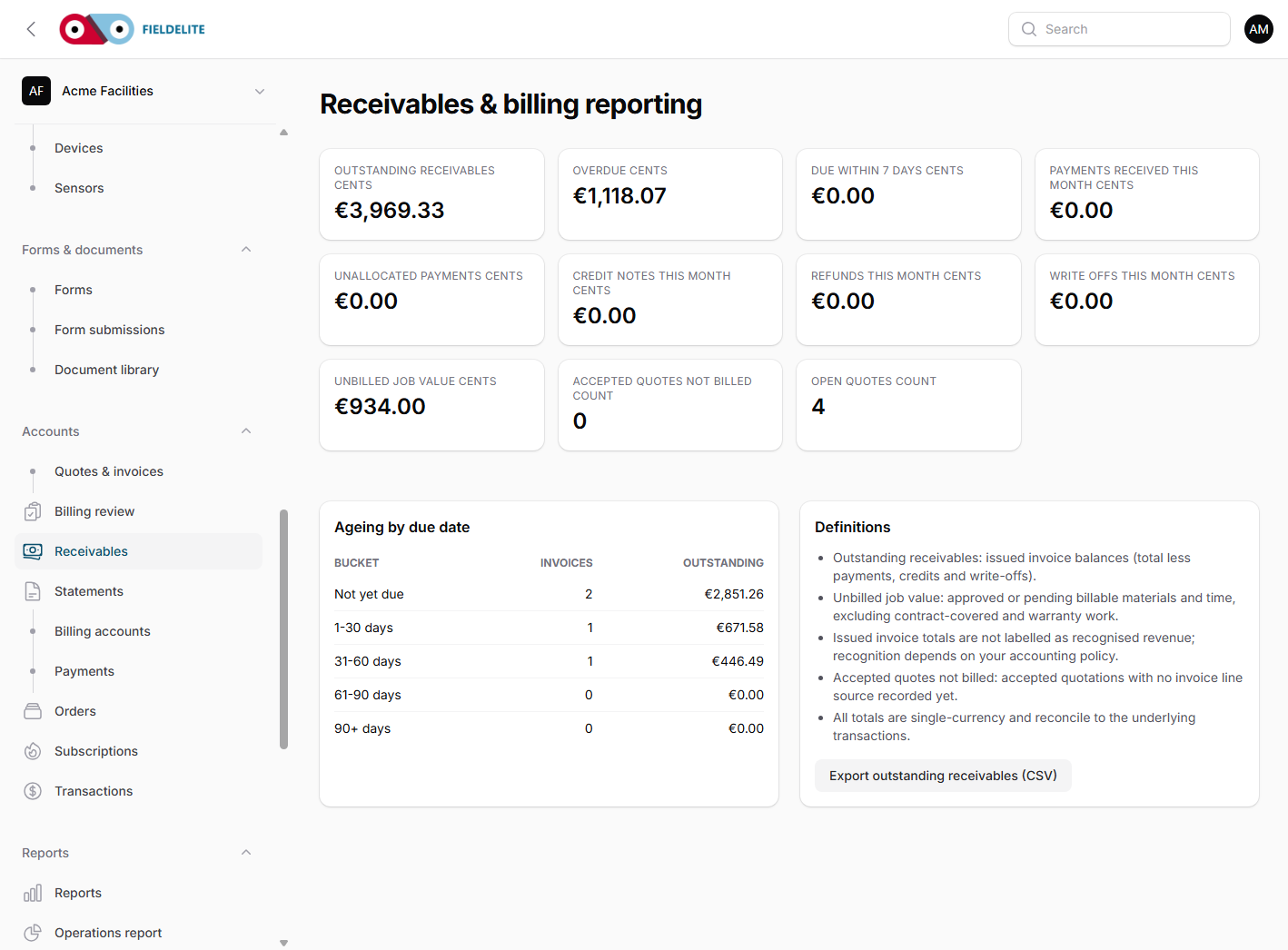
Open Receivables report to see:
- total outstanding
- ageing buckets
- overdue invoices by customer
- unallocated payments
Use Statements to generate an open-item or activity statement and send it to the customer. Statements can be downloaded as PDFs and are also visible in the portal.
Card payments from the portal
Card payments are optional and must be configured in Workspace settings ��' Customer card payments.
- Enter the Stripe secret key, publishable key and webhook signing secret.
- Register the webhook endpoint shown on the settings page with Stripe.
- The customer sees Pay now on an outstanding issued invoice.
- The invoice updates only when a verified
checkout.session.completedorpayment_intent.succeededwebhook arrives. - A refund arrives as
charge.refunded; a full refund restores the invoice balance and preserves the payment and refund history.
Warning: A browser success page never marks an invoice paid. If the webhook is not configured, card payments will not settle.
Accounting connectors
Open Workspace settings ��' Accounting and choose Xero, Sage Business Cloud Accounting or QuickBooks Online. The provider is also selectable during onboarding. Enter the provider company/organisation identifier, OAuth client credentials and tokens. The connector can refresh an expired access token when a refresh token is present.
On an issued invoice, use Send to accounting to push the contact and invoice. The external reference is stored against the local record and audited. Accounting sync is manual; issuing an invoice does not send it automatically.
Job profitability
Open a job and choose Profitability. The panel separates:
- invoiced revenue net of credit applications;
- known labour cost from time-entry cost rates;
- material cost from job lines;
- approved or paid expenses;
- unbilled lines and time.
The margin is explicitly marked incomplete while a cost source is missing. Subcontractor cost is not yet implemented, so a final margin is never claimed.
Daily finance routine
- Check Billing review for invoices that need attention.
- Allocate unallocated payments.
- Review overdue invoices and send reminders.
- Check quotes that are about to expire.
- Reconcile the days takings against the bank.
Check your understanding
- What is the difference between an invoice draft and an issued invoice?
- How does an invoice become Paid?
- When should you use a credit note instead of editing an invoice?
Related: Customer portal: quotes and invoices · Reports and the map
Related articles
Who this is for: everyone in the office workspace. What you will learn: where the help centre lives, how to search it, and how to get from a screen to the right article. Open the h...
Who this is for: office administrators, dispatchers, managers and finance users. What you will learn: how to sign in to the right workspace, find your way around, and set up your p...
Who this is for: office administrators, dispatchers and managers. What you will learn: how FieldElite models a customer, its sites and the people on site — and how to give a custom...
Who this is for: office administrators, dispatchers, managers and supervisors. What you will learn: how to raise a job, assign it, move it through the status workflow, and close it...