The portal dashboard
Who this is for: customer portal users.
What you will learn: what the dashboard shows and where to go next.
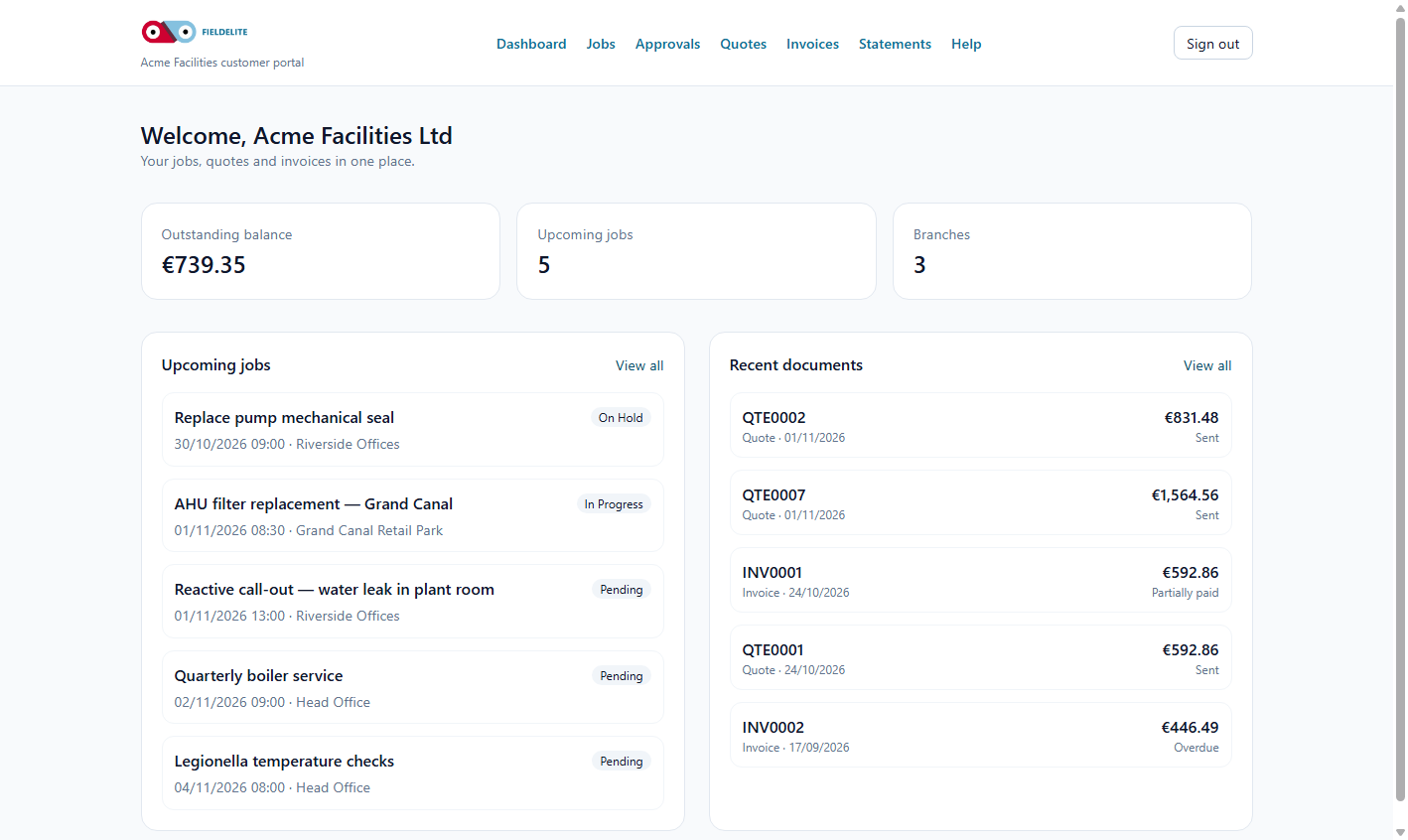
What you see
| Tile or section | Meaning |
|---|---|
| Outstanding balance | Total unpaid invoices on your account |
| Upcoming jobs | Jobs scheduled from today onwards |
| Branches | Sites linked to your account |
| Recent documents | Latest quotes and invoices |
Read the balance correctly
The outstanding balance is the sum of unpaid invoice balances. It does not include:
- quotes you have not accepted
- invoices already paid but not yet cleared by the bank
- credit notes not yet applied
If a payment is missing, allow for bank clearing time before raising a query.
Open a job
- Select Jobs in the top navigation.
- Choose a job.
- Read the status and scheduled window.
- Open the service report when the job is complete.
Open a quote or invoice
- Quotes — review, accept or decline.
- Invoices — view balances, download PDFs and raise a query.
- Statements — view account statements, if your provider has enabled billing access.
What you cannot see
For security and commercial reasons, the portal does not show:
- other customers
- internal staff notes
- worker costs or margins
- other sites you are not linked to
- draft documents
Tips
- Tip: Bookmark the portal address.
- Tip: Use the PDF download when you need to send a document to your finance team.
- Tip: If a job is missing, contact your provider — it may not have been scheduled yet.
Check your understanding
- What does the outstanding balance include?
- Where do you accept a quote?
- Name two things the portal deliberately hides.
Related: Jobs and service reports · Quotes and approvals
Related articles
Who this is for: customer contacts with portal access. What you will learn: how to sign in, reset a password and keep your account secure. Before you start The portal address fro...
Who this is for: customer portal users. What you will learn: how to track jobs and download the service report. Find a job Select Jobs. The list is ordered by scheduled date, new...
Who this is for: customer portal users who approve work. What you will learn: how to review a quote, accept it, decline it and understand what happens next. Review a quote Select...
Who this is for: customer portal users and accounts teams. What you will learn: how to read an invoice, download it, pay it and raise a query. Open an invoice Select Invoices. Op...