Install and use the worker PWA
Who this is for: field workers who use a browser instead of the Android app.
What you will learn: how to install the PWA, sign in, and what works offline.
What the PWA is
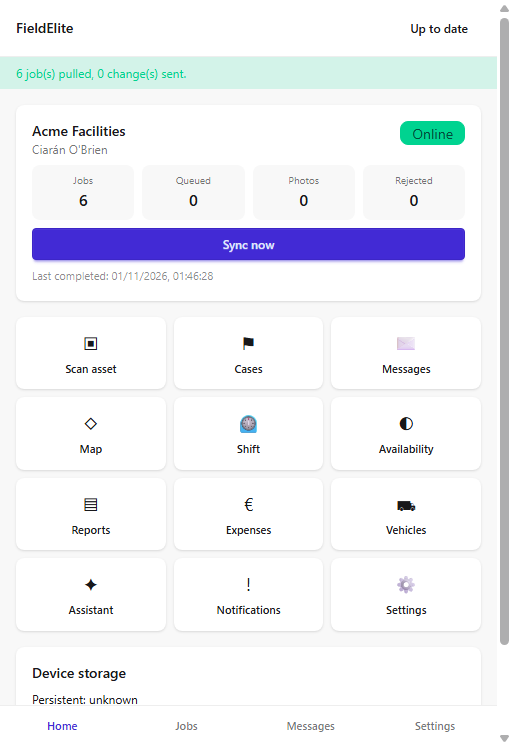
The PWA is the field worker app served from your workspace at /worker. It is the same job, checklist, case and messaging data as the Android app, built for a browser and installable on a phone or desktop.
Use the Android app when you need NFC, Bluetooth, barcode hardware or a managed offline map pack. Use the PWA on iPhone, on a laptop, or when you cannot install the Android app.
Install
- Open
https://your-workspace/workerin Chrome, Edge or Safari. - Sign in with your work email and password.
- Open the browser menu and choose Install app (Chrome/Edge) or Add to Home Screen (iPhone/iPad).
- Launch the app from the home screen.
Tip: On iPhone and iPad, push notifications only work after the app is added to the Home Screen.
Sign in
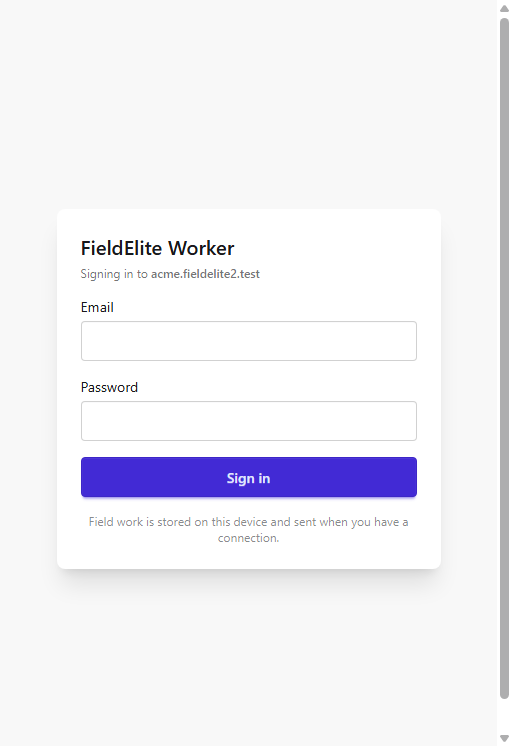
- Enter your email and password.
- Choose Sign in.
- The app downloads your jobs, customers and reference data.
- Leave the app open until the first sync finishes.
What you can do
| Area | What it does |
|---|---|
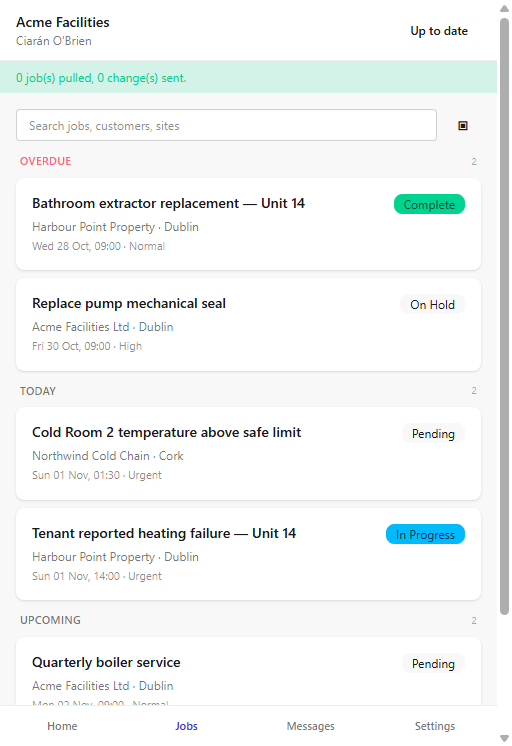
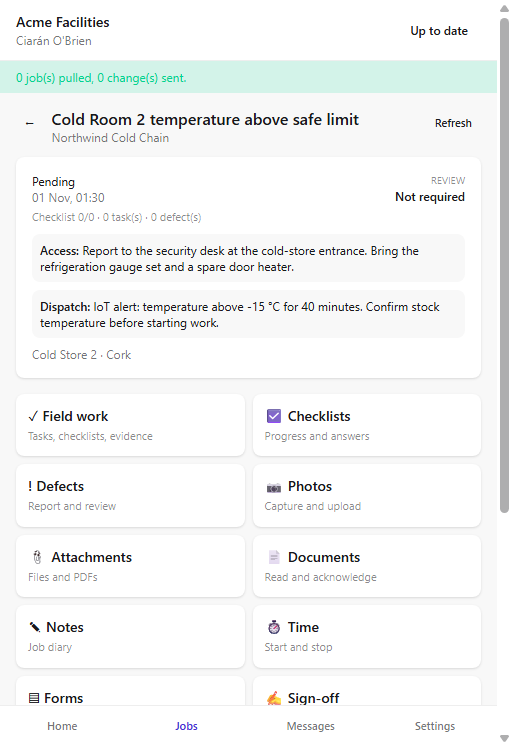
| Jobs | Today, upcoming and unscheduled work with the field package |
| Job | Field work, checklists, defects, documents, notes, time, photos, sign-off |
| Cases | Report an incident, hazard, near miss or ask for help |
| Messages | Job, case and team conversations |
| Shift | Start and end the day, availability |
| Expenses and vehicles | Claims and vehicle checks |
| Settings | Notifications, install help, sync state |
Offline behaviour
- Jobs and the field package are stored on the device.
- Checklist answers, defects, notes and document acknowledgements queue in an outbox.
- Photos are written to the device before upload and sent when you have signal.
- The sync engine retries with the same client id, so a retry does not create duplicate records.
- Logging out is blocked while queued work exists.
There is no background sync on iOS. Keep the app open until the sync finishes.
Check your understanding
- Where is the PWA served from?
- Which features need the native Android app?
- What happens to a checklist answer when you are offline?
Related: Working a job · Offline use and syncing · Troubleshooting
Related articles
Who this is for: field workers using the web workspace, the PWA or the Android app. What you will learn: how to open the help centre and find the answer without leaving the job. Op...
Who this is for: engineers, technicians and anyone completing jobs on site. What you will learn: how to sign in, find your work, and understand what the office expects from each jo...
Who this is for: field workers. What you will learn: the on-site routine that produces a clean, billable, defensible job record. Arrive and start Park safely and follow the site'...
Who this is for: field workers. What you will learn: how to complete a checklist correctly and capture evidence that will stand up to review. How a checklist behaves It is a snap...