21 Subcontractors And Restricted Portal
Subcontractors, offers and the restricted portal
Who this is for: managers and office staff who use external labour.
What you will learn: how to keep a compliant subcontractor register, offer work, give a private portal link, record attendance and reconcile a purchase invoice.
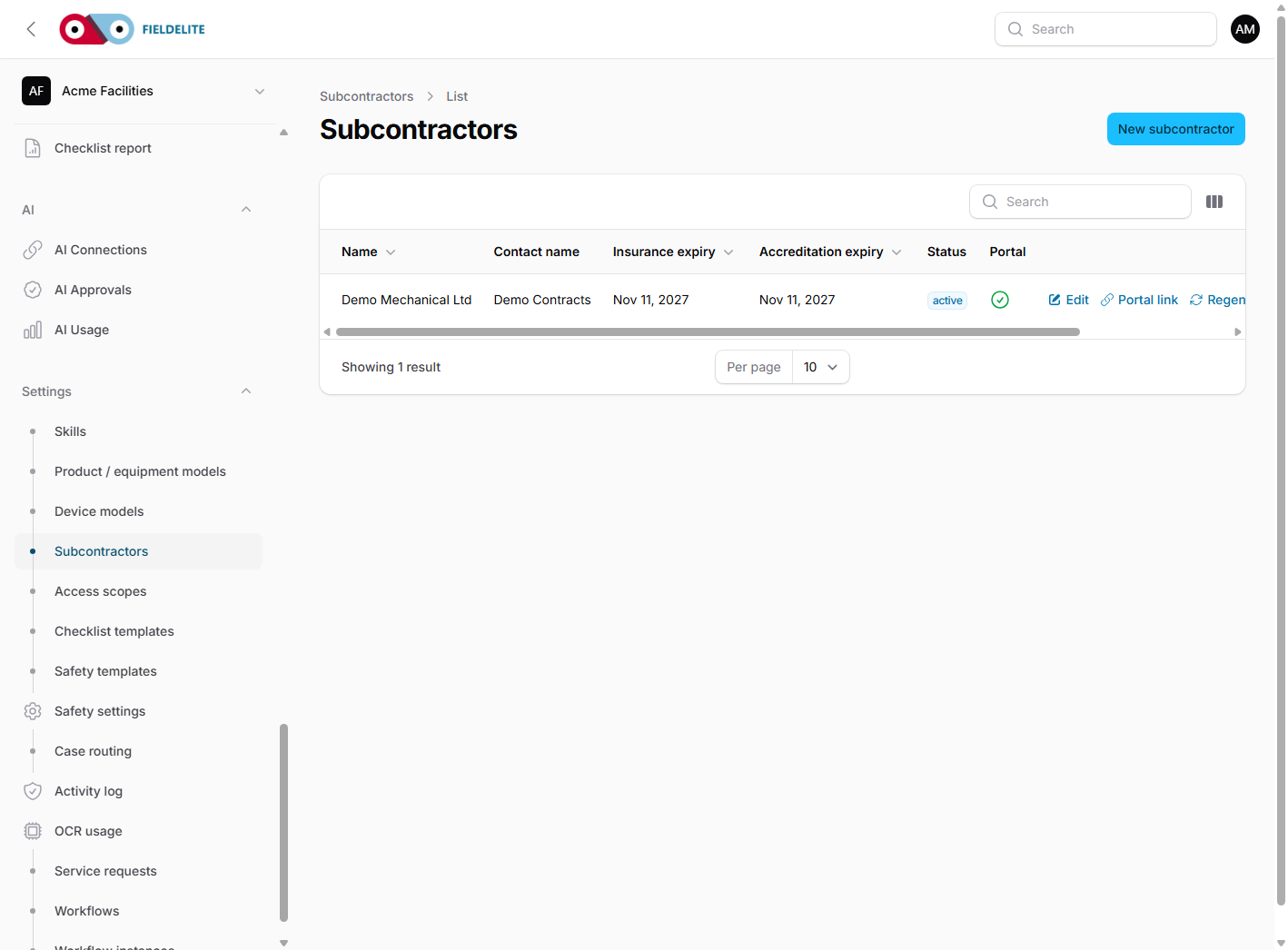
Register a subcontractor
Open Subcontractors and add:
- company name, contact, email and phone
- insurance provider and expiry, with the certificate
- accreditation name and expiry, with the certificate
- status: active, suspended or retired
- rate agreements: hour, day, job or visit
- Restricted portal access when the company should receive a link
A missing or expired insurance/accreditation date blocks assignment for that job date. The gate is not a warning.
Offer or assign work
From the job, assign the subcontractor or create an offer with an optional rate, note and expiry. Accepting an offer rechecks compliance and assigns the job atomically. Other pending offers for the job are declined.
Send the portal link
- Enable Restricted portal access and save.
- Use Portal link to copy the private URL.
- Send it securely.
- Use Regenerate portal link to invalidate the old URL.
The portal only shows that subcontractor's offers, assigned jobs and attendance. It supports accept/decline and check-in/out. Invalid, rotated or disabled links return a not-found page.
Warning: anyone with the current link can act as the subcontractor. Do not post it publicly.
Attendance and cost
Record attendance in the office or let the subcontractor check in/out through the portal. Attendance stores minutes on site and optional evidence.
For hourly and day rates, attendance supersedes the job-duration estimate. The subcontractor rate is applied excluding VAT with job → visit → day → hour precedence.
Purchase invoices
Open the subcontractor and use Purchase invoices:
- Choose the related job.
- Enter reference, invoice date, net and VAT.
- Upload the document.
- Save.
The invoice compares net cost with the accrued cost and shows the variance. A manager approves it.
Troubleshooting
| Symptom | Check |
|---|---|
| Assignment blocked | Insurance/accreditation missing or expired, or company inactive |
| Offer not visible | Portal access, current link, offer still pending and unexpired |
| Link returns not found | Link was regenerated, access disabled or URL wrong |
| Check-in blocked | Job not assigned, complete/cancelled, or an open record exists |
| Variance is unexpected | Rate, duration/attendance and currency |
Related: Jobs and workflow · Scheduling and dispatch · Quotes, invoices and payments
Related articles
Who this is for: everyone in the office workspace. What you will learn: where the help centre lives, how to search it, and how to get from a screen to the right article. Open the h...
Who this is for: office administrators, dispatchers, managers and finance users. What you will learn: how to sign in to the right workspace, find your way around, and set up your p...
Who this is for: office administrators, dispatchers and managers. What you will learn: how FieldElite models a customer, its sites and the people on site — and how to give a custom...
Who this is for: office administrators, dispatchers, managers and supervisors. What you will learn: how to raise a job, assign it, move it through the status workflow, and close it...